Where patches happen
The canvas
The canvas is a freeform surface: modules go anywhere, cables connect them, and the whole thing zooms and pans. This page covers the everyday mechanics — adding, patching, selecting, organising, and the safety nets underneath it all.
Adding modules
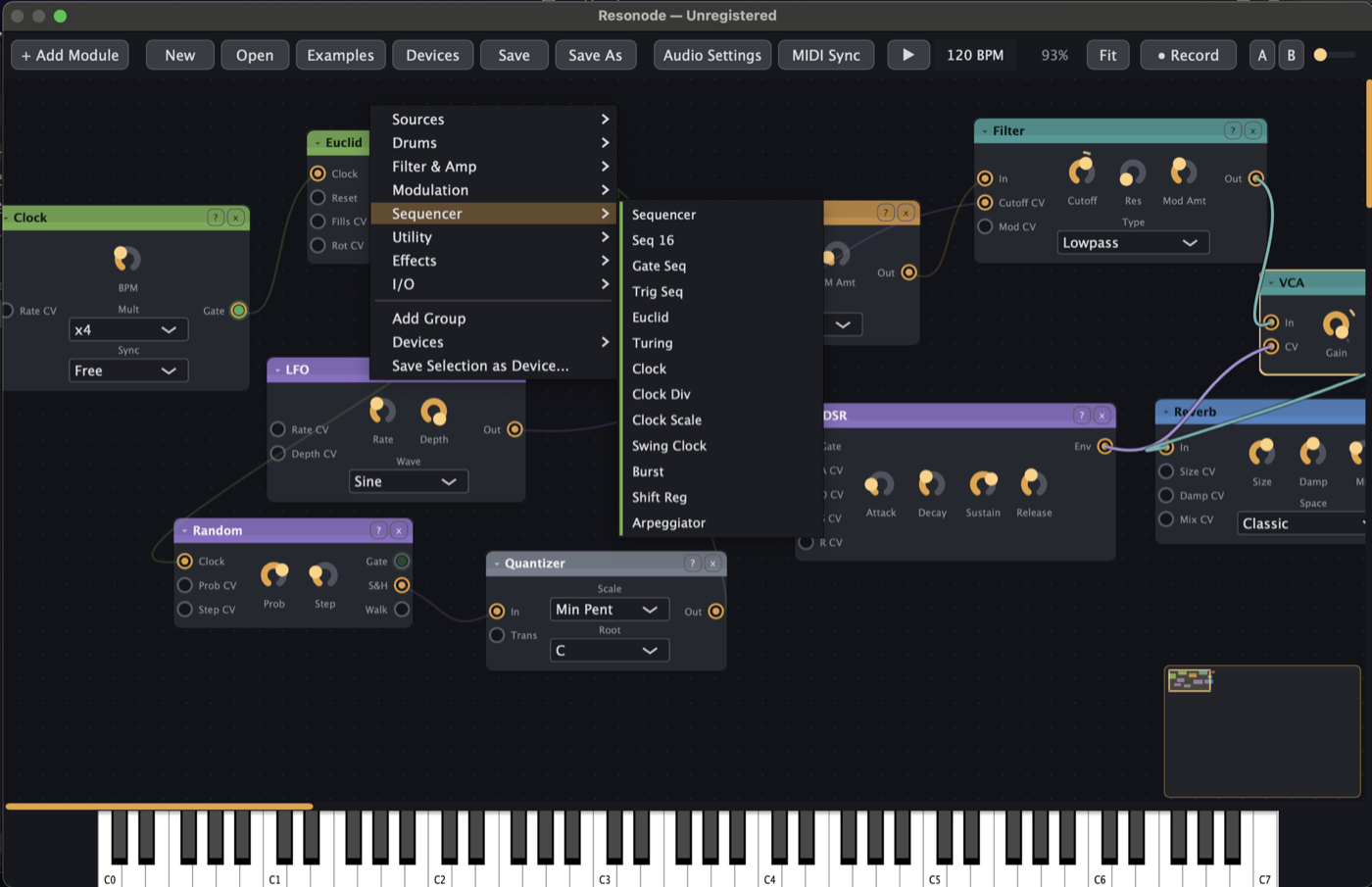
- Double-click empty canvas for the quick-add palette: type to search, read the one-line description in the detail pane, press Return to add.
- Right-click empty canvas for the categorised menu — hover any entry for the same description.
- Double-clicking a knob resets it to its default; right-clicking a knob lets you type an exact value.
Cables
- Patch: drag from any port to any compatible port (out → in). Multiple cables into one input sum.
- Unpatch: right-click a port to unplug everything on it, or click a cable and press Delete.
Cable probes
Hover any cable and a live bubble shows the signal's current value, range and waveform — audio looks like audio, gates look like gates, and a "silent" patch usually reveals its stuck gate or zero CV in seconds. Probes are read-only; they never affect the signal.
Selection, copy & duplicate
- Drag on empty canvas to marquee-select; Shift-click adds or removes single modules.
- Cmd+C / V copies and pastes a selection with its internal cables intact; Cmd+D duplicates in place — the standard move for building a second voice.
- Delete removes the selection. One undo step brings a whole multi-module delete back.
Groups and Notes
- Groups: right-click the canvas to create a labelled group; drag modules in and they move as one. Name them by job — "drums", "FX", "modulation brain".
- Notes: the Notes module is a sticky-note for the canvas. Type anything; it saves with the patch. Annotate for future-you (or for whoever you send the patch to).
- Bypass: right-click any module to bypass it — handy for A/B-ing an effect without unpatching.
Zoom and pan
- Cmd+= / - / 0 zoom in, out, and reset; Cmd+scroll or pinch zooms around the cursor.
- Middle-drag or Alt-drag pans; the Fit button frames the whole patch.
Undo, autosave and crash recovery
Cmd+Z / Cmd+Shift+Z cover everything — structural changes and knob moves alike (parameter changes are debounced into sensible steps). Autosave runs every 30 seconds while you have unsaved changes, and if the app didn't close cleanly, the next launch offers to restore where you were. Patch first, understand later; you can always get back.
Themes
The Appearance menu switches the colour scheme. Alongside four accessibility presets (Light, High Contrast, Colour-Blind Safe, Monochrome) there are themes modelled on classic gear: TR-808, TR-909, TB-303, Minimoog, Prophet-5 and Korg MS-20. Your choice is remembered between sessions.